

Check for updates
Check versions for your platform, then download and install the package manually.
Guide based on source version 2.0.1-rc.7. Screenshots show the English interface of a prerelease edition; their values illustrate examples, not necessarily defaults. Packages on Downloads may differ: review their release notes and saving options before processing.
On this page
Check from the app
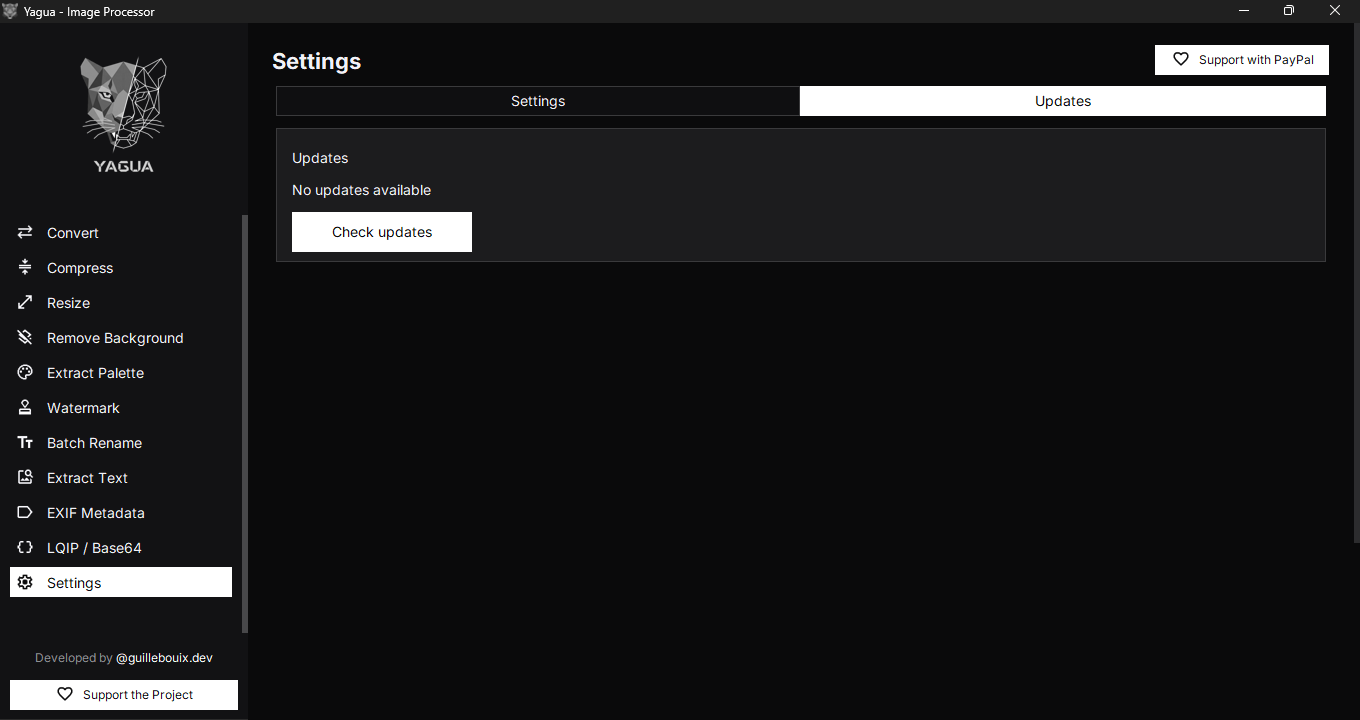
- Open Settings → Updates and read the status. This screen has no Current version field; its initial message is not a substitute for an online check.
- Connect to the internet and click Check updates.
- Wait for the result.
When a newer version is found, the download button opens its release in your browser. It does not silently download, install, or replace the running app. If the check succeeds and finds no newer version, it reports that result. A network error is a failed check, not confirmation that you have the latest package.
A background check at startup may show a dismissible notice without blocking your work. A background failure may not open an error dialog; use the manual check if you need to investigate.
Which releases are considered
The documented checker queries GitHub releases and filters stable versions and prereleases by platform. Drafts, unrelated tags, and versions that are not newer are excluded. Tags use platform prefixes such as win-v and linux-v; older tag conventions may not be detected. Windows and Linux versions can differ.
Older RC.4 and RC.5 packages have an earlier checker that does not detect newer RC packages. Open Releases manually to upgrade. The behavior described for 2.0.1-rc.7 does not change an older executable.
There is no visible stable/RC channel selector or repository URL setting in this edition.
Install manually
- Open Releases.
- Choose the package for your platform and version, and read its release notes.
- Finish active operations, export results, and close Yagua.
- On Windows, run the new installer or extract the complete portable package into a separate folder. Do not mix libraries from different portable versions.
- On Linux, use the new AppImage and follow the execution instructions for that package.
- Open the new copy and verify that you launched the intended package. Keep its full filename and release notes as the version reference.
Keep originals and exported results outside the program folder. User preferences may be reused, but work that was not exported from the previous session is not recoverable through the updater.
A release is missing
Check your connection, platform, installed version, and release notes. Compare published packages manually. A failed query or a result with no updates does not prove that no other packages are available.
If the problem continues, include the complete version and error in your report.