

Remove metadata in batches
Prepare image copies with Yagua to remove metadata. Check supported formats and which information may remain before sharing the files.
Guide based on source version 2.0.1-rc.7. Screenshots show the English interface of a prerelease edition; their values illustrate examples, not necessarily defaults. Packages on Downloads may differ: review their release notes and saving options before processing.
On this page
How it differs from Edit
Use Clean batch to prepare copies of several images with less metadata before sharing them. What is removed or retained depends on the format and saving process; this is not a guarantee of anonymity.
EXIF Metadata → Edit changes individual fields. EXIF Metadata → Clean batch cleans checked images without individual tag selection. Both tabs use Saving to choose copies or replacement of originals.
Use it to prepare several photographs for sharing or remove camera and authorship information from copies. To remove only GPS from a JPEG/TIFF while retaining other EXIF, see the editor’s dedicated action.
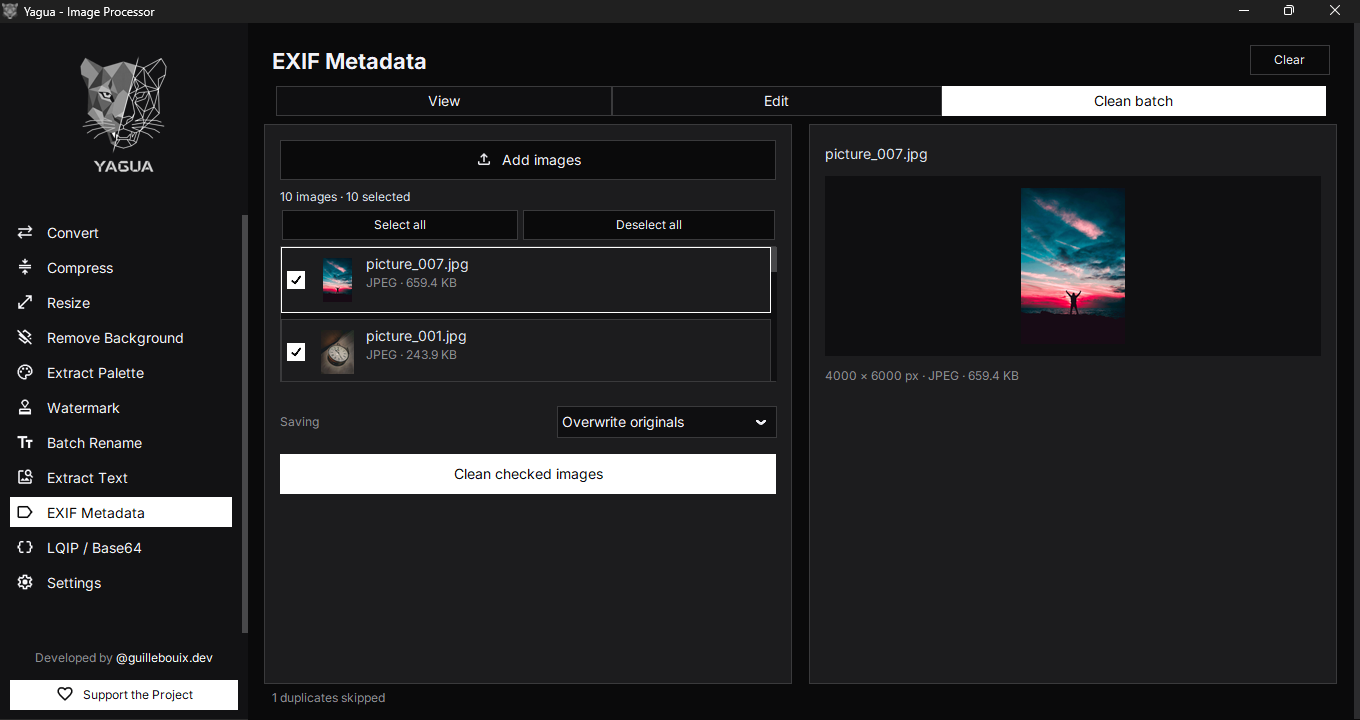
Inputs and controls
The selector offers JPEG, PNG, TIFF, WebP, and HEIC/HEIF. Load up to 100 images. Writing depends on installed codecs. Protected processing rejects animated and multipage images rather than cleaning complete sequences.
| Control | Effect |
|---|---|
| Add images | Appends files to the shared list, skipping duplicates. |
| Image list | Checkboxes mark files to clean; opening a row displays its preview. |
| Select all / Deselect all | Changes the list’s checkboxes. |
| Saving | Create copies or Overwrite originals. |
| Clean checked images | Prepares output for checked inputs and asks for confirmation. |
| Clear in the header | Clears all three metadata tabs; does not run EXIF cleaning. |
Clear empties on-screen state; Clean checked images processes marked inputs using the chosen saving mode. They are different actions.
Procedure
- Export a report from View first if you need a record.
- Open Clean batch and load photographs.
- Check the marked images and selected count. Split sets larger than 100.
- Set Saving to Create copies; the screenshot shows Overwrite originals. Click Clean checked images, choose a separate folder, and review the confirmation.
- Wait for cleaned and failed file counts.
- Open a copy in View and an image viewer to inspect both data and appearance.
What saving changes
Processing normalizes orientation before writing a new image without copying original information blocks. It is not tag removal without re-encoding. JPEG uses internal quality 95, without a slider here; size can change and lossy compression is repeated. Original color profiles are not guaranteed either.
File size is not proof of cleaning: it may grow or shrink. Yagua’s viewer is a known EXIF-field catalog, not analysis of every possible file block.
Cleaning does not erase visible names, faces, plates, addresses, or marks embedded in pixels. It does not rename files to hide personal information in filenames.
Example and names
With Create copies, vacaciones.jpg keeps its base name in the chosen folder, adding a variant such as vacaciones_1.jpg when occupied. This mode preserves originals. Overwrite originals allows replacement, so review the confirmation. Each input format remains.
Selection and errors
Add images appends files to the shared list, skipping duplicates. Header Clear empties that list and its drafts across View and Edit; pending changes may require confirmation. It does not delete exported copies. Canceling output selection or confirmation does not start cleaning.
Corrupt inputs or missing write codecs can fail only part of a batch. Inspect outputs and consult logs and reports to identify causes.