

Apply a watermark
Overlay a logo or illustration on photographs and inspect an example composition before saving.
Guide based on source version 2.0.1-rc.7. Screenshots show the English interface of a prerelease edition; their values illustrate examples, not necessarily defaults. Packages on Downloads may differ: review their release notes and saving options before processing.
On this page
Preparation
Use base images and a separate watermark file. A transparent PNG is preferable for logos; a rectangular JPEG keeps its background inside the watermark.
Choose up to 100 base images through the general dialog. Logo selection offers PNG, JPEG, WebP, BMP, and HEIC/HEIF. Reading and writing depend on codecs; test PNG or JPEG first. Final processing rejects animated and multipage base images and logos.
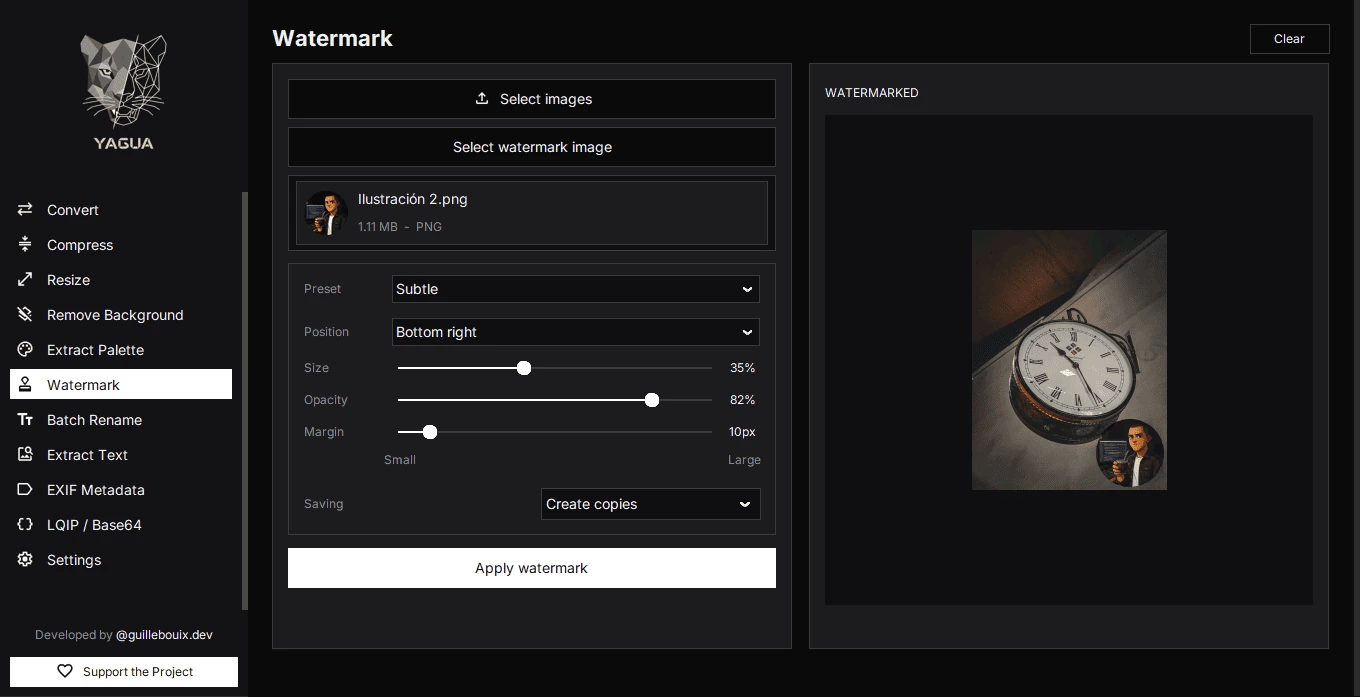
Controls
| Control | Options or initial value |
|---|---|
| Select images | Loads bases; the first supplies the preview. |
| Select watermark image | A single logo separate from the batch. |
| Preset | Subtle, Visible, Protection, Center. |
| Position | Top left, Top right, Bottom left, Bottom right, Center; initially Bottom right. |
| Size | 5–80 % of the base image width; initially 25 %. |
| Opacity | 5–100 %; initially 60 %. |
| Margin | 0–100 px; initially 20 px. |
| Saving | Create copies or Overwrite originals. |
| Apply watermark | Prepares output and asks for confirmation. |
| Clear | Resets this module, including logo selection and settings. |
100 % opacity fully displays opaque logo areas; smaller values blend them with the photograph. The PNG’s own alpha still matters. Size is relative to each photograph’s width, not fixed pixels. Actual-size constraints also prevent exceeding the base image; an unusually wide or tall logo may not retain the expected scale exactly.
Presets
| Preset | Size | Opacity | Position |
|---|---|---|---|
| Subtle | 15 % | 30 % | Bottom right |
| Visible | 25 % | 60 % | Bottom right |
| Protection | 40 % | 85 % | Bottom right |
| Center | 30 % | 40 % | Center |
Selecting a preset applies those three values but does not reset Margin. You can then adjust individual controls. On opening, the selector may show Subtle while state values are 25 % and 60 %. To use Subtle, explicitly select it and check the numbers. Effective controls determine composition, not just the displayed preset name.
Procedure
- Load base photographs.
- Choose a watermark file and wait for its thumbnail and WATERMARKED preview.
- Select a preset and check position, size, opacity, and margin.
- Allow the preview to update after control changes.
- Under Saving, choose Create copies, click Apply watermark, choose output, and review the confirmation and files.
The preview uses a reduced version of the first image. It does not show the entire batch or prove exact full-resolution pixels and margins. Check outputs with different aspect ratios. This screen does not display a complete thumbnail list of all bases.
Example and saving
For a product photo, choose Visible, Bottom right, 25 % size, 60 % opacity, and 20 px margin. With Create copies, producto.jpg keeps its base name in the chosen folder, adding a counter for conflicts and preserving the original. Overwrite originals allows replacement. Each base image keeps its format.
The screenshot shows different manual settings: 35 %, 82 %, and 10 px. They are not the Subtle preset values even though its name remains selected.
This tool cannot choose a new output format. Convert first for PNG, WebP, or a transparency-compatible output. A visible watermark does not prevent cropping or editing and does not replace authorship metadata.
File changes and errors
A new batch replaces bases. A new logo replaces the watermark and updates the preview. Clear rebuilds the module and discards screen selections and settings, not saved files.
A logo is required. For preview-only failures, check the logo and wait for loading. For clipped or faint marks, reduce size and margin and inspect PNG alpha. Final errors can be partial; inspect the output folder and log.