

General preferences
Set the language, theme, interface scale, and visible tools, then apply your changes together.
Guide based on source version 2.0.1-rc.7. Screenshots show the English interface of a prerelease edition; their values illustrate examples, not necessarily defaults. Packages on Downloads may differ: review their release notes and saving options before processing.
On this page
Open preferences
Open Settings → Settings. The other tab is Updates. This edition has no accessible Logs tab; see Logs and reports to find the log file.
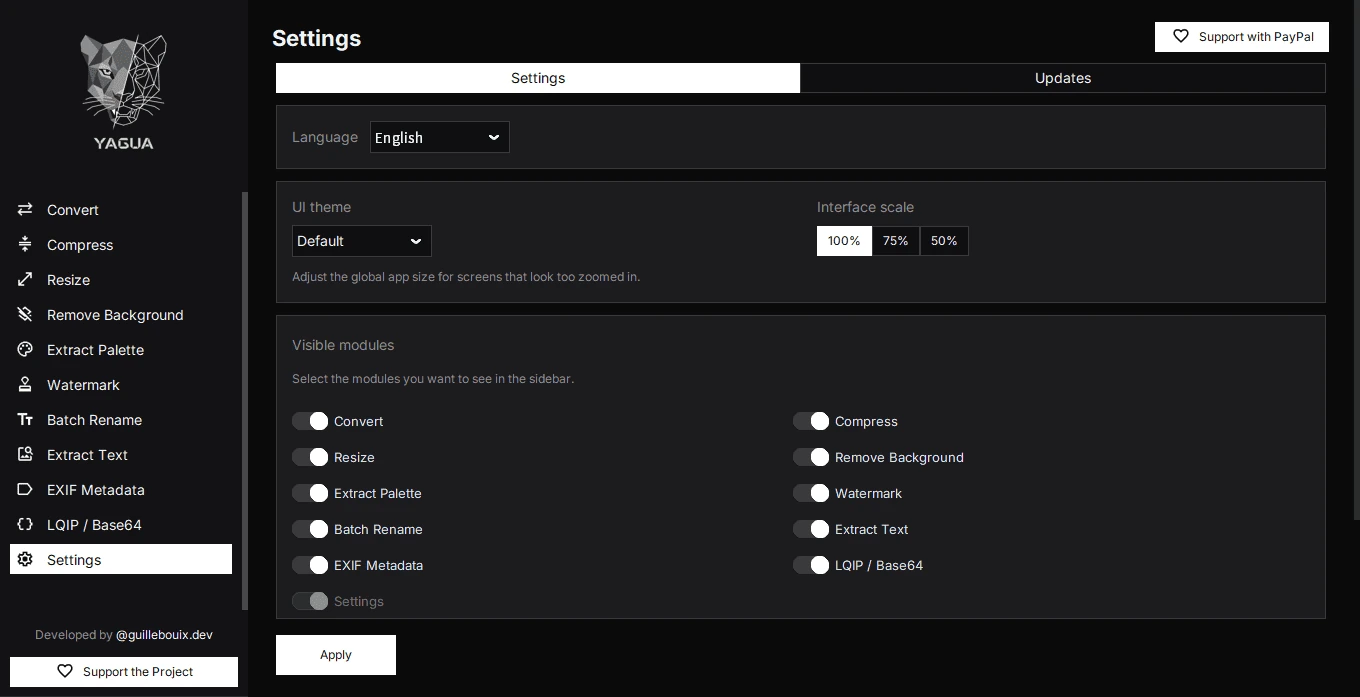
Language
Choose Language from the nine available options: Español, English, Português, Français, Deutsch, Italiano, 日本語, 简体中文, and Русский. Spanish is the default when no valid preference is available. Older packages may offer fewer languages.
This changes the interface. It does not translate your files, change OCR recognition, or add OCR languages. Choose recognition languages in OCR.
UI theme
UI theme offers Default, TokyoNight, Vaporwave, Dracula, Nord, SoftGraphite, MutedBlue, SoftPurple, and SlateTeal. Default is used when the saved value is invalid.
These themes change the dark interface colors. They are not image filters or a custom color editor.
Interface scale
Interface scale offers 100%, 75%, and 50%; the default is 100%. A smaller value makes controls and text smaller. It does not resize images or compress files.
Try enlarging the window and scrolling its panels before choosing a scale that makes text difficult to read. There is no field for an arbitrary scale value.
Visible modules
Visible modules controls which of the ten tools appear in the sidebar: Convert, Compress, Resize, Remove Background, Extract Palette, Watermark, Batch Rename, Extract Text, EXIF Metadata, and LQIP / Base64. Settings remains accessible.
Hiding a tool does not uninstall it, delete its models, reduce the package size, or change permissions.
Apply changes
- Finish active operations and export any results you need.
- Set the language, theme, scale, and visible modules.
- Click Apply once.
- Wait for the notice and restart, then check your preferences again.
Changing a selector does not restart the app immediately. A restart may wait for an active operation to finish. Unsaved work inside a tool is not a saved preference.
Where preferences are stored
| System | File |
|---|---|
| Windows | %APPDATA%\Yagua\user_settings.json |
| Linux | ~/.config/Yagua/user_settings.json |
| Experimental macOS | ~/Library/Application Support/Yagua/user_settings.json |
The portable package also uses your user profile. Its preferences are not necessarily isolated inside the extracted folder; two copies of Yagua under the same user can share them.
If a preference is invalid or cannot be read, the loader falls back to defaults. Close the app, back up the file, and check the log before editing it manually. Editing JSON is not required for normal use.