

Edit EXIF metadata
Update selected JPEG or TIFF fields, remove GPS, or apply an orientation transformation.
Guide based on source version 2.0.1-rc.7. Screenshots show the English interface of a prerelease edition; their values illustrate examples, not necessarily defaults. Packages on Downloads may differ: review their release notes and saving options before processing.
On this page
Choose how to save
Under Saving, choose Create copies to preserve inputs or Overwrite originals to allow replacement. Review the destination and confirmation before accepting; saved files have no Undo.
Open EXIF Metadata → Edit and click Add images. The shared list holds up to 100 images, while the form edits the open image. Editing requires JPEG or TIFF (.jpg, .jpeg, .tif, .tiff); other formats may be readable without being editable. Saving rejects animations and multipage images.
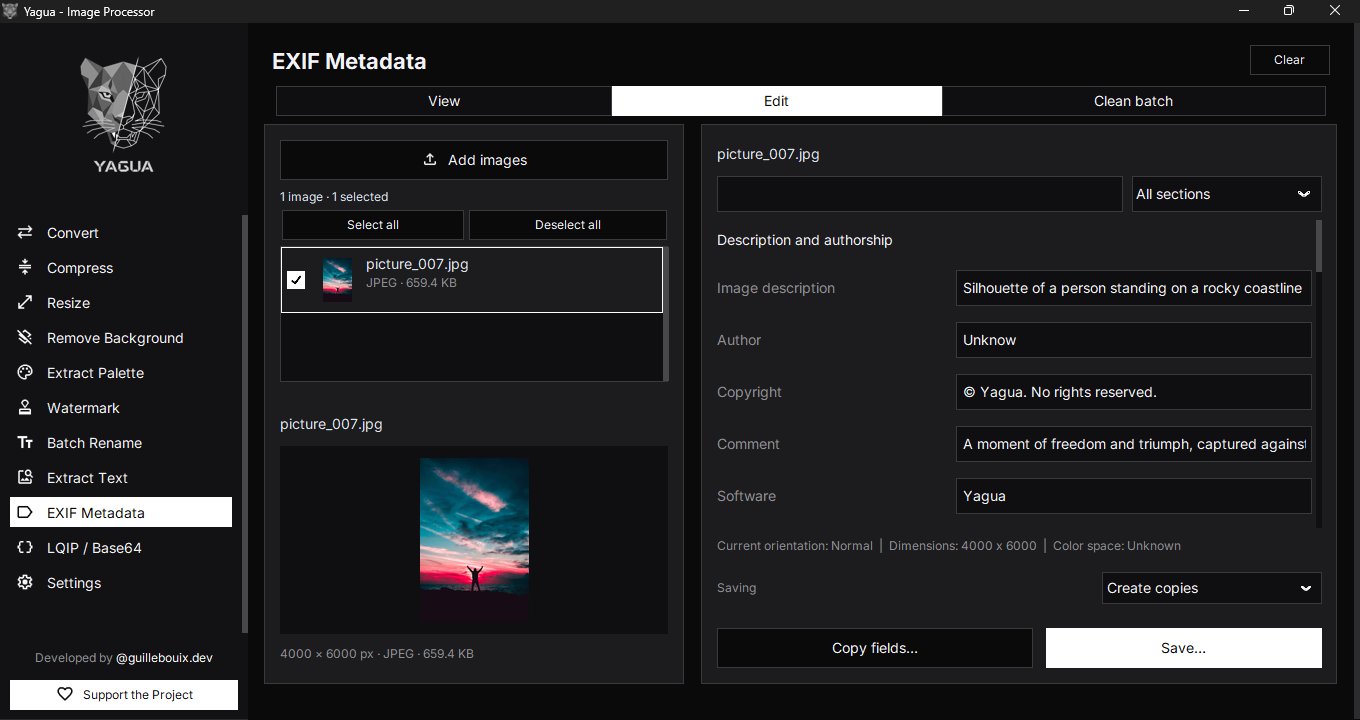
Select and check the target
The app loads existing fields, technical information, and a photo preview. Check the filename above the form. View, Edit, and Clean batch share the list and open image. Opening another row switches the file being edited, retaining its draft while it remains loaded.
The preview on the left identifies the file. It is not a framing editor or an interactive preview of every pending transformation. When saving copies, open the output to verify its data; the loaded input does not automatically become that copy.
The search field and All sections filter form fields. They do not delete data or change what will be saved by themselves.
Copy fields to other images
Check the destination images in the list. Open the image with the source values and click Copy fields…. Choose fields or options and review the checked set. This updates drafts: use Save… and choose the scope before writing files.
Text fields
| Group | Editable fields |
|---|---|
| Description and authorship | Image description, Author, Copyright, Comment, Software. |
| Camera and lens | Camera make, Camera model, Lens make, Lens model. |
Fields are optional and prefilled when available. Leaving a field empty does not delete it: empty values are ignored. Only nonempty values differing from the loaded values change. Use Batch Clean for collective removal; GPS has a dedicated action.
Yagua supports Unicode text when saving, though other viewers may interpret it differently. Author and Copyright are file declarations, not copy prevention.
Capture settings
| Field | How to enter it |
|---|---|
| Exposure time (e.g. 1/250) | Positive fraction 1/250 or decimal 0.004. |
| Aperture (f/) | Positive number such as 2.8, without f/. |
| ISO | Integer from 1 to 65535. |
| Focal length (mm) | Positive number such as 50, without units. |
| 35 mm equivalent focal length | Integer from 1 to 65535. |
| Exposure compensation (EV) | Signed number such as -0.7 or 1/3. |
| Exposure program | Undefined, manual, normal, priority, creative, action, portrait, or landscape programs. |
| Exposure mode | Automatic, manual, or automatic bracketing. |
| Metering mode | Average, center-weighted, spot, multi-spot, pattern, partial, or other methods. |
| Flash | Fired/not fired; does not represent every possible bit of the original tag. |
| White balance | Automatic or manual. |
| Light source | Recognized sources such as daylight, fluorescent, tungsten, flash, cloudy, or shade. |
Use a decimal point. Values must be finite; zero denominators and out-of-range EXIF values are rejected. Lists include Leave unchanged to retain existing data. Do not enter arbitrary codes or units in numeric fields.
Complete selector options
Besides Leave unchanged, each selector provides these choices. If a file contains an unrecognized code, keep Leave unchanged unless you intentionally want to replace it.
| Selector | Options |
|---|---|
| Exposure program | Not defined; Manual; Normal; Aperture priority; Shutter priority; Creative; Action; Portrait; Landscape. |
| Exposure mode | Auto; Manual; Auto bracket. |
| Metering mode | Unknown; Average; Center-weighted; Spot; Multi-spot; Pattern; Partial; Other. |
| Flash | Did not fire; Fired. |
| White balance | Auto; Manual. |
| Light source | Not defined; Daylight; Fluorescent; Tungsten; Flash; Fine weather; Cloudy; Shade; Other. |
Changing ISO, focal length, or exposure does not change how the photo was taken or visually alter its lighting. It updates declared metadata only.
GPS location
Fields are Latitude (decimal), Longitude (decimal), Altitude (m), and Direction (degrees).
- Latitude: −90 to 90. Longitude: −180 to 180. Use signed decimals, not degrees/minutes/seconds.
- Supply latitude and longitude together. If one changes and the other exists, the editor can retain it from the form; review both.
- Altitude or direction also requires a valid coordinate pair.
- Negative altitude is allowed. Direction must be at least 0 and below 360.
- Remove GPS location from the image deletes the GPS block and overrides GPS form values on save.
Test example: latitude -34.60, longitude -58.38. This location is illustrative, not data to copy into real photographs without checking. Removing GPS does not remove an address in Comment or visible image content.
Dates
The input is Capture date. Accepted date/time forms have optional seconds:
2026-10-19 14:30
2026-10-19 14:30:05
19-10-2026 14:30
2026:10:19 14:30:05
A date without a time does not match the accepted forms. There is no timezone selector. Values are saved in EXIF date/time format.
Copy capture date to the other EXIF dates writes it to the general and digitized dates too. This starts disabled and requires a valid Capture date. Without it, changing capture date does not synchronize the others.
Orientation and technical information
Transform applied to the pixels starts at Keep current orientation. Alternatives are Normal, Mirror horizontal, Rotate 180°, Mirror vertical, Transpose (mirror and rotate 270°), Rotate 90° clockwise, Transverse (mirror and rotate 90°), and Rotate 90° counterclockwise.
A transformation physically changes pixels on save after normalizing existing EXIF orientation. Dimensions update and the orientation tag is normalized. This is more than rewriting a number: rotation can swap width and height.
Current orientation, dimensions, and color space are information, not all editable text fields. JPEG EXIF-only edits without orientation transformations avoid pixel re-encoding. Applying orientation can re-encode JPEG; TIFF is also saved again. Do not assume byte identity or lossless compression in those cases.
Save and verify
- Load images and check the filename above the form.
- Change only necessary fields.
- Review GPS, date synchronization, and orientation.
- Under Saving, choose Create copies for this test and click Save….
- Choose Open image or Selected images. Check the marked set before saving several images, choose a folder for copies, and review the confirmation.
- Resolve validation messages and open the saved files in View to verify them. If using Overwrite originals, review replacements before accepting.
Without saveable changes, a notice appears and no confirmation is required. Canceling confirmation does not save. Do not treat failed operations as complete: read the message and reread the file.
Clear empties the shared list and drafts; pending changes may require confirmation before being discarded. It does not undo saved edits. Add images appends files while skipping duplicates; opening another row shows that image’s draft.