

Rename files in batches
Batch rename images in Yagua with prefixes, numbers and dates. Review the filename preview and work with copies to protect the original names.
Guide based on source version 2.0.1-rc.7. Screenshots show the English interface of a prerelease edition; their values illustrate examples, not necessarily defaults. Packages on Downloads may differ: review their release notes and saving options before processing.
On this page
Before you start
Open Batch Rename and select up to 100 files through the image selector. It is not a general document browser. This tool changes names, not formats or pixels.
Work with copies if you need the old names. Renaming happens in each original folder without creating an output folder, requesting overwrite confirmation, or providing Undo.
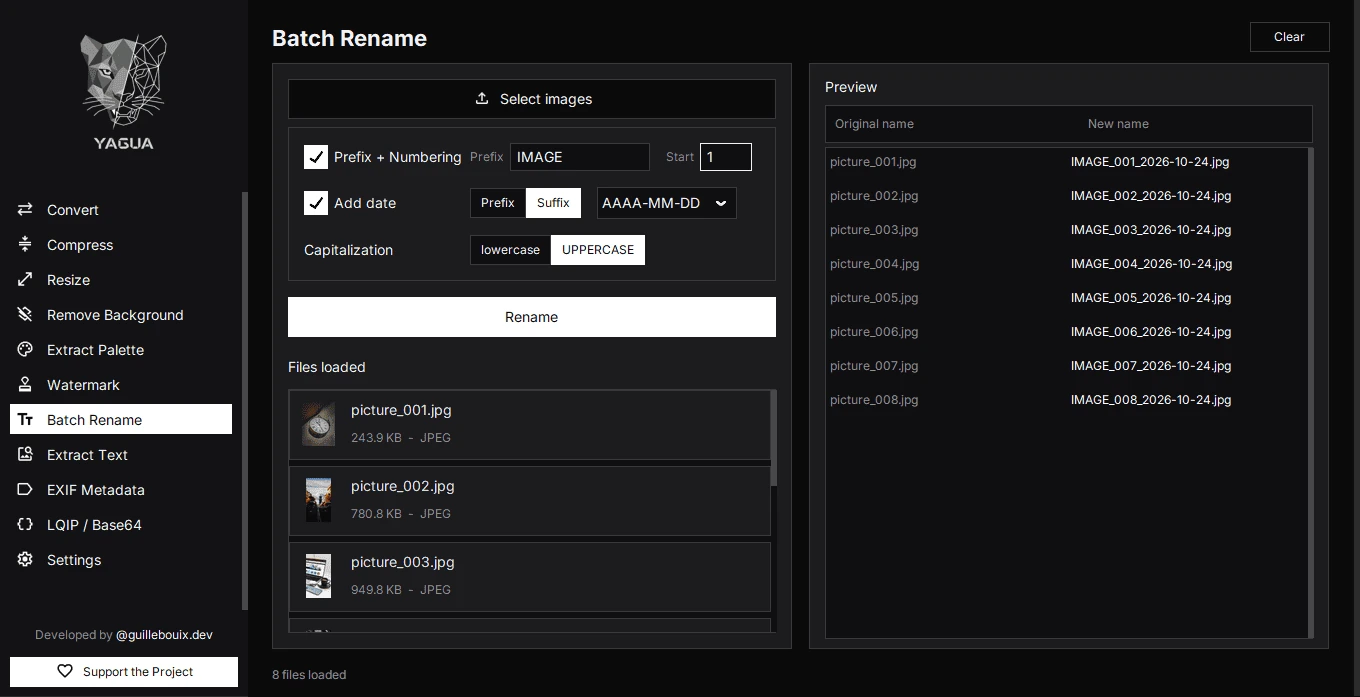
Controls and defaults
| Control | Initial state | Effect |
|---|---|---|
| Prefix + Numbering | Disabled | Builds a sequence when enabled. |
| Prefix | foto | Used before the number when numbering is enabled. |
| Start | 1 | First sequence number. |
| Add date | Disabled | Adds the computer’s execution date, not the EXIF capture date. |
| Date Prefix / Suffix | Prefix | Adds the date before or after the name. |
| Date Format | YYYYMMDD | Also DDMMYYYY, YYYY-MM-DD, and DD-MM-YYYY. |
| Capitalization | lowercase | UPPERCASE alternative; applies to the base name. |
| Rename | — | Applies filename changes. |
| Clear | — | Clears inputs without restoring disk filenames. |
Original extensions remain, including their letter case. There is no visible unchanged-case option: even with numbering and dates disabled, the initial setting may lowercase the base name.
How names are built
With numbering and Prefix foto, names start foto_001, foto_002, foto_003. Padding is at least three digits without truncating larger numbers. An empty prefix appends the number to the original base name.
The date is added next, then case is applied. For October 19, 2026, Prefix producto, Start 1, and a hyphenated date prefix, an example is 2026-10-19_producto_001.jpg.
Characters unsuitable for filenames are normalized in the prefix. Do not use it for paths or folders. Enter an integer start; unparseable content falls back to 1. Review the proposal rather than relying on fallback behavior.
The screenshot uses another configuration: prefix IMAGE, Start 1, a hyphenated date suffix, and UPPERCASE. Preview shows names such as IMAGE_001_2026-10-24.jpg; that date belongs to the test and changes with the execution day.
Procedure
- Copy test files into a separate folder.
- Load them using Select images.
- Check list order; it determines numbering. There is no drag-to-reorder control.
- Enable numbering or dates as needed and choose case.
- Inspect Preview, Original name, and New name. Changing controls updates the proposal automatically.
- Click Rename only when the proposal is correct.
Conflicts and results
An occupied destination is skipped and counted as a conflict. It is neither overwritten nor automatically changed to nombre_1. A batch may be partially renamed: check the folder before repeating.
A file already matching its proposed name may count as successful without changing. Completion clears selection and preview, so load files again for another operation. The count is not a recoverable old-name history.
Preview does not reserve disk names. If the computer date or folder contents change before execution, results or conflicts can change.
In the documented code, Clear empties the general list without explicitly resetting the preview panel. Old proposals may remain visible; that does not mean files remain loaded. New selections update the proposal, and Rename requires inputs. Naming settings remain after clearing.