

Extract a color palette
Find representative colors, copy useful design values, and export a PNG palette.
Guide based on source version 2.0.1-rc.7. Screenshots show the English interface of a prerelease edition; their values illustrate examples, not necessarily defaults. Packages on Downloads may differ: review their release notes and saving options before processing.
On this page
What the palette represents
The tool analyzes a reduced image and groups similar colors, showing the most frequent in that representation first. It is not a pixel eyedropper or print-color certification tool.
Use one image at a time. The selector offers JPEG, PNG, WebP, BMP, TIFF, AVIF, and HEIC/HEIF as codecs allow. Extraction rejects animations and multipage images.
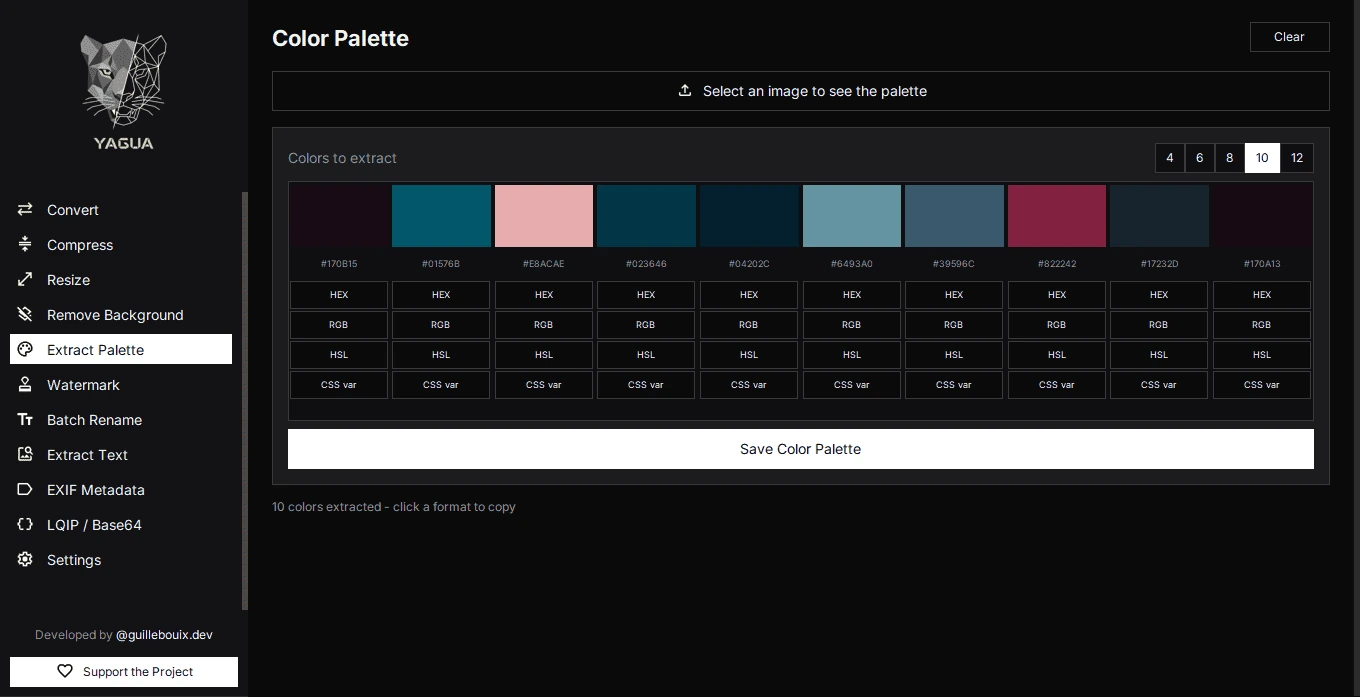
Controls
| Control | Initial value or options |
|---|---|
| Select an image to see the palette | Loads an image and extracts its palette automatically. |
| Colors to extract | 6 initially; 4, 6, 8, 10, or 12. |
| HEX, RGB, HSL, CSS var | Per-swatch buttons that copy its representation. |
| Save Color Palette | Opens a PNG save dialog. |
| Clear | Removes the image and palette from the screen. |
Changing the count extracts again automatically. Images with few color variations may yield fewer effective colors than requested.
Understand the formats
- HEX: a compact color value such as
#336699. - RGB: red, green, and blue amounts, for example
rgb(51, 102, 153). - HSL: hue, saturation, and lightness, useful for related colors.
- CSS var: a declaration such as
--color: #336699;. Rename the generic--colorif you define several variables.
A format button copies that swatch, not the entire palette. Status text identifies what was copied.
Procedure and example
- Open Extract Palette and click Select an image to see the palette.
- Choose a photograph or illustration and wait for the initial 6 colors.
- Try 8 under Colors to extract for a broader selection.
- Click HEX beneath a swatch.
- Click Save Color Palette, choose a name and location, and save PNG.
The suggested name is paleta.png. Output contains swatches and HEX values, not a complete stylesheet, and leaves the original image unchanged. You can edit the filename; review the save dialog’s confirmation before replacing an existing file.
The screenshot shows 10 extracted colors, an example selection rather than the initial 6 or the procedure’s test with 8.
Interpretation limits
Results approximate the processed image. It converts to RGB; transparent areas may contribute pixel colors and are not treated as a separate design region. There is no manual area selector to exclude a background.
For an object’s palette, first prepare an image without large unrelated regions. More extracted colors do not necessarily make a better interface palette.
New images and clearing
A new image replaces the old one and extracts with the selected count. Canceling selection keeps the current state. If a new image is corrupt, an old palette is not its result: check the error message.
Clear removes images and swatches without deleting exports. The color count remains. Saving requires successful extraction; for read errors, try a valid PNG or JPEG copy.