

Create an LQIP placeholder
Generate a small, blurred image to display while a higher-resolution photograph loads on a website.
Guide based on source version 2.0.1-rc.7. Screenshots show the English interface of a prerelease edition; their values illustrate examples, not necessarily defaults. Packages on Downloads may differ: review their release notes and saving options before processing.
On this page
What it does
LQIP means low-quality image placeholder. It is deliberately small, does not replace the final image, and does not improve sharpness. Yagua generates the thumbnail and code; your website implements the transition to the final photograph.
Open LQIP / Base64, then choose LQIP under Generation. Use one image. The individual selector offers JPEG, PNG, WebP, BMP, TIFF, AVIF, and HEIC/HEIF as codecs allow. Animations and multipage sequences are not preserved.
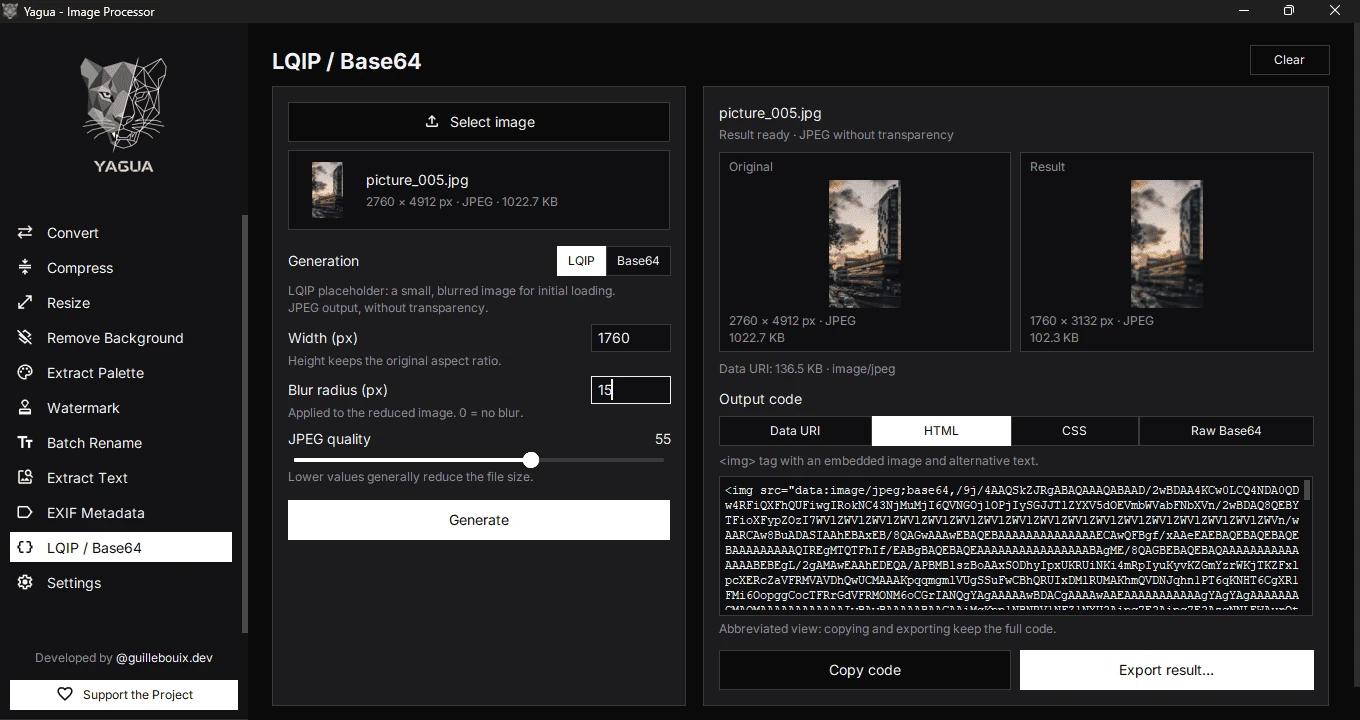
Controls
| Control | Initial value and range |
|---|---|
| Select image | Replaces the current image and resets parameters. |
| Generation | LQIP or Base64; initially LQIP. |
| Width (px) | 20; integer above 0. Height is proportional. |
| Blur radius (px) | 2; finite number at least 0. |
| JPEG quality | 40; LQIP range 10–80. |
| Generate | Creates output from current settings. |
| Output code | Data URI, HTML, CSS, or Raw Base64. |
| Copy code | Copies the complete selected representation. |
| Export result… | Saves TXT or JSON. |
| Clear | Removes input/output and restores initial values. |
The width field imposes no maximum. Keep placeholders small: excessive width adds work and defeats their purpose. Blur applies to the reduced image, not as an original-image percentage. 0 disables blur.
Procedure
- Select a photograph and wait for Original.
- For a first test, keep LQIP, width 20, blur 2, and quality 40.
- Click Generate.
- Compare Original and Result; read dimensions, JPEG size, and Data URI size.
- Choose an Output code format, then copy or export.
Both modes output JPEG without transparency. A transparent PNG loses alpha, without a guaranteed white background. Prepare an opaque image first to control its background. Preview orientation and encoding may differ for EXIF-oriented inputs; normalize a copy first if orientation is critical.
Example
A 1600 × 900 input with width 20, blur 2, and quality 40 creates a 20 × 11 JPEG after rounding. The enlarged comparison does not mean extra resolution. File size depends on content and is not guaranteed.
The screenshot shows a different test: width 1760, blur 15, and quality 55, with HTML selected. It illustrates controls and comparison; that width is much larger than a small placeholder. Follow the procedure’s 20, 2, and 40 values for your first test.
Code formats and saving
- Data URI:
data:image/jpeg;base64,..., an embedded URL forsrcorurl(...). - HTML: an image tag with that URI and filename-derived alt text; adapt the alt to your actual content.
- CSS: a
background-imagerule with a normalized filename-derived class. - Raw Base64: a string without MIME prefix; the receiver must know it represents JPEG.
TXT exports the chosen representation preceded by a source-name comment. JSON includes the name and all four representations. The proposed name uses the original with _lqip. You can change it; check overwrite warnings. This screen has no separate button to save the JPEG directly as an image.
Pending changes, copying, and clearing
Parameter changes invalidate output: Generate again before copying or exporting. Changing only the code representation does not require regenerating. The code view can be abbreviated, but Copy code and exports keep the complete content. If full clipboard copying cannot be verified, export instead.
Switching modes retains parameters for the same image but requires generation for the chosen mode. Loading another image resets LQIP mode, width 20, blur 2, LQIP quality 40, Base64 quality 85, and Data URI. Canceling selection keeps the prior state. Clear performs that reset without deleting exported files.