

Batch compress images
Reduce JPEG, PNG and WebP image file sizes with Yagua. Adjust format-specific quality settings and choose how to save before processing a batch.
Guide based on source version 2.0.1-rc.7. Screenshots show the English interface of a prerelease edition; their values illustrate examples, not necessarily defaults. Packages on Downloads may differ: review their release notes and saving options before processing.
On this page
What changes
Compress saves the image again using format-specific options. It does not reduce pixel dimensions: a 4000 × 3000 photograph keeps those dimensions after orientation normalization. Use Resize for fewer pixels.
Load up to 100 images through the general selector. Use static, single-page images. Actual support depends on codecs even when an extension appears in the dialog.
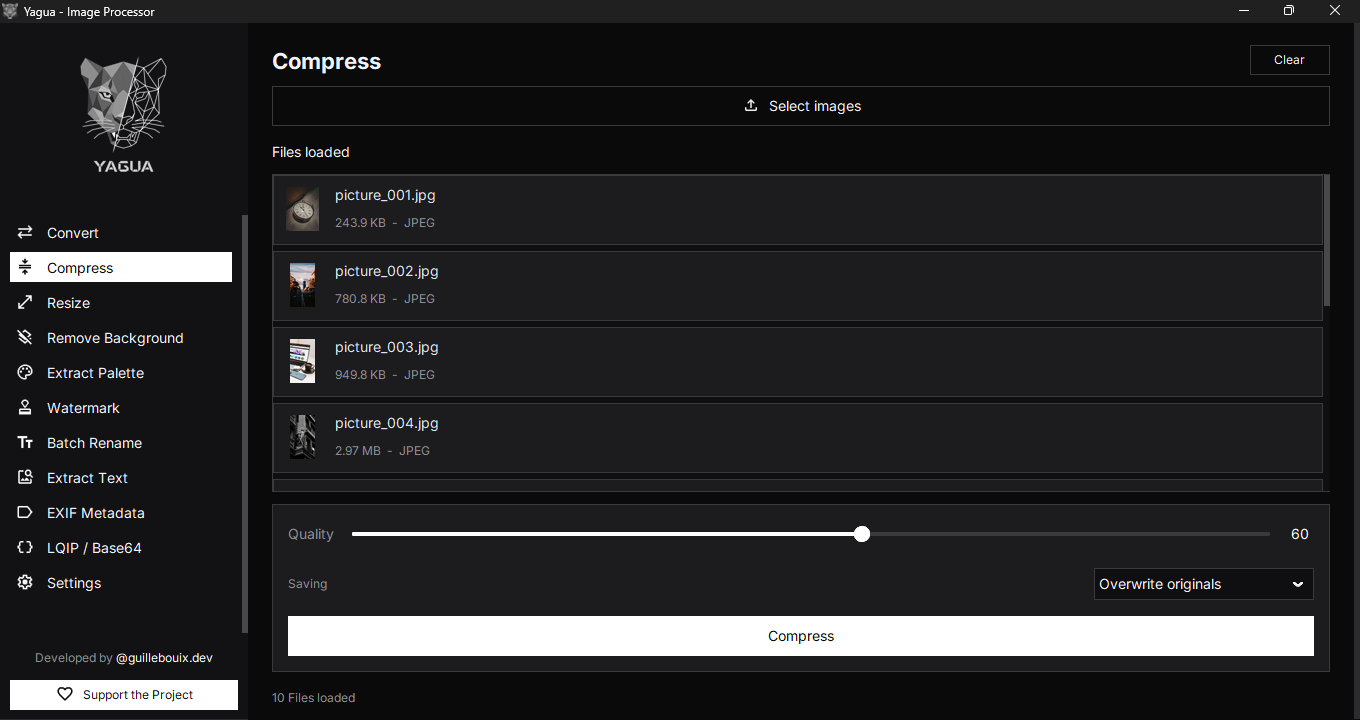
Controls and defaults
| Control | Initial value | Effect |
|---|---|---|
| Select images | No selection | Loads or replaces the batch. |
| Quality | 60; 10–100 in steps of 10 | Sets encoding where the format uses it. |
| Saving | Create copies or Overwrite originals | Chooses copies or replacement of originals. |
| Compress | — | Prepares output and asks for confirmation. |
| Clear | — | Clears the selection without deleting files. |
Lower quality can introduce artifacts: blotches, edges, or blurred detail. It does not mean the file will shrink by that percentage.
Differences between formats
JPEG and WebP use the chosen quality. AVIF and HEIC/HEIF also use it when their codecs are available. PNG uses optimization and conversion to a palette of up to 256 colors, which can lose subtle colors even if you expected no visible changes. The quality slider does not control that color count.
BMP and TIFF do not receive a JPEG-equivalent quality setting here. ICO builds sizes compatible with the image. Not every format becomes smaller, and the same quality value does not look identical across formats.
Step by step
- Open Compress and load images.
- Choose Quality based on a visual test, not the number alone.
- Under Saving, choose Create copies to preserve this test’s inputs. The screenshot shows Overwrite originals: change the mode before continuing if you want copies.
- Click Compress, choose a folder, review the confirmation, and wait for the summary.
- Compare the output with the original at a size that reveals detail.
The screen shows inputs. Moving the slider does not calculate a live size estimate. The size summary describes the completed batch.
Why a result may not be smaller
If the new encoding is the same size or larger, that output is not published. A 0 % reduction can be correct: check the summary to distinguish saved files, skipped files, and errors rather than assuming a copy was always created.
Example and filenames
For foto.jpg, Quality 60 as shown in the screenshot, Create copies, and a comprimidas folder, output keeps the base name, such as foto.jpg; an occupied or protected input path receives a variant such as foto_1.jpg. This mode preserves the original. Overwrite originals allows replacement, so review the confirmation. Test a copy before applying settings to 100 photographs.
Clear empties files without necessarily resetting Quality. New selections replace the batch. Inspect the output and log before retrying partial failures.