

Extract text from images with OCR
Turn words in a photograph or screenshot into editable text you can copy or export.
Guide based on source version 2.0.1-rc.7. Screenshots show the English interface of a prerelease edition; their values illustrate examples, not necessarily defaults. Packages on Downloads may differ: review their release notes and saving options before processing.
On this page
Recognition scope
OCR means optical character recognition. Yagua recognizes Spanish, English, or both with EasyOCR. Choosing Japanese, Russian, or another interface language does not add recognition languages.
Load up to 10 images using the general image dialog. There is no PDF input or reconstruction of document layouts, tables, fonts, or images. Convert PDF pages to images with another tool first.
Prepare images
Use clear, high-contrast text of sufficient size. Correct tilted photos or crop unrelated edges with an appropriate tool first. Processing uses grayscale and binary contrast: artistic photographs, complex backgrounds, handwriting, or tiny text may perform poorly.
There are no confidence, segmentation, fine-rotation, or model-editing controls here.
Controls and initial loading
| Control | Initial value or function |
|---|---|
| Select Images | Loads or replaces the batch. |
| OCR Languages | Spanish/English initially; Spanish or English separately. |
| Process OCR | Recognizes text in the batch. |
| Text panel | Displays results and allows selection and correction. |
| Copy Text | Copies the panel’s current content. |
| Export Text | Saves current content as TXT. |
| Clear | Clears inputs and text without deleting models. |
Opening the module can initialize or download models, even before selecting a photograph. Processing may be disabled while the engine loads. Wait for initialization; another language combination may require an additional reader or model.
Procedure
- Open Extract Text From Images (OCR) and wait for loading.
- Select up to 10 clear images.
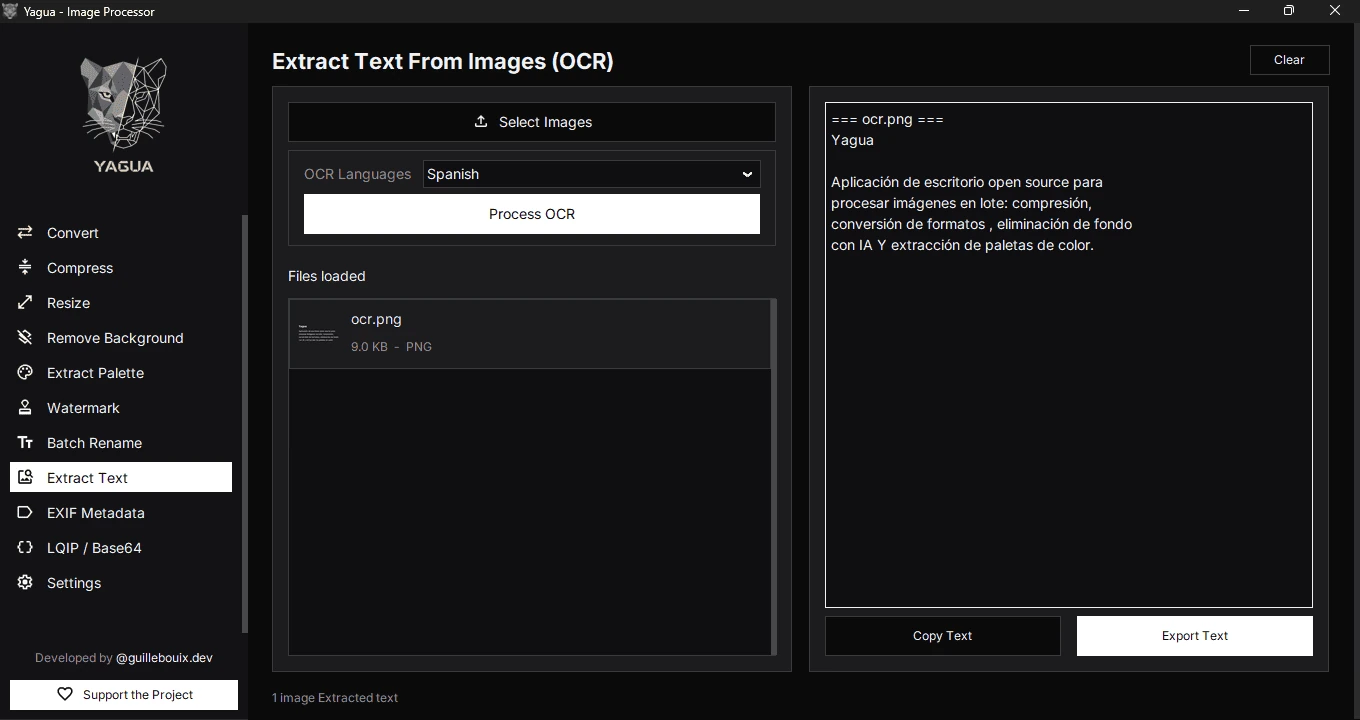
- Choose Spanish to reproduce the screenshot, which contains Spanish text; use English or the combined option when appropriate for your actual content.
- Click Process OCR and wait.
- Review accents, digits, names, punctuation, and line breaks. Correct the panel before copying or exporting if needed.
- Use Copy Text or Export Text.
Each result appears below a header such as === documento.jpg ===. These headers are included when copying or exporting. A no-text message does not necessarily mean the image failed to open.
Example
The screenshot uses ocr.png with Spanish text about Yagua and Spanish selected. Load an image with legible text, choose that language, and process. Compare recognized text with its source, correct the panel, and export into a test folder; line breaks may vary.
Output automatically proposes texto_extraido.txt, then texto_extraido_1.txt and subsequent names when needed. The file is UTF-8 text, not Word or a searchable PDF. Originals remain unchanged.
Errors and new selections
Without AVIF support, those files may be skipped with a warning mentioning AVIF. Convert copies to PNG/JPEG and retry. Installing arbitrary plugins in a separate Python does not repair a prebuilt package.
New selections clear old text. Clear also removes it while retaining recognition language choices. Export first if you need the result. The model cache is reused, not deleted by Clear.
Accuracy is not guaranteed for legal, accounting, or documentary use. Compare with the source image before relying on text. Reading order can fail on multiple columns or complex layouts.