

Remove image backgrounds
Remove image backgrounds with local AI in Yagua. Check supported formats and initial model downloads; results depend on the image.
Guide based on source version 2.0.1-rc.7. Screenshots show the English interface of a prerelease edition; their values illustrate examples, not necessarily defaults. Packages on Downloads may differ: review their release notes and saving options before processing.
On this page
Before you start
This tool is optimized for products and light backgrounds. Results depend on contrast, edges, reflections, and scene complexity. Perfect hair, glass, or same-colored background separation is not guaranteed.
Select up to 10 images with the general selector. Use static, single-page files the package can read. There are no manual outline or brush-retouching controls.
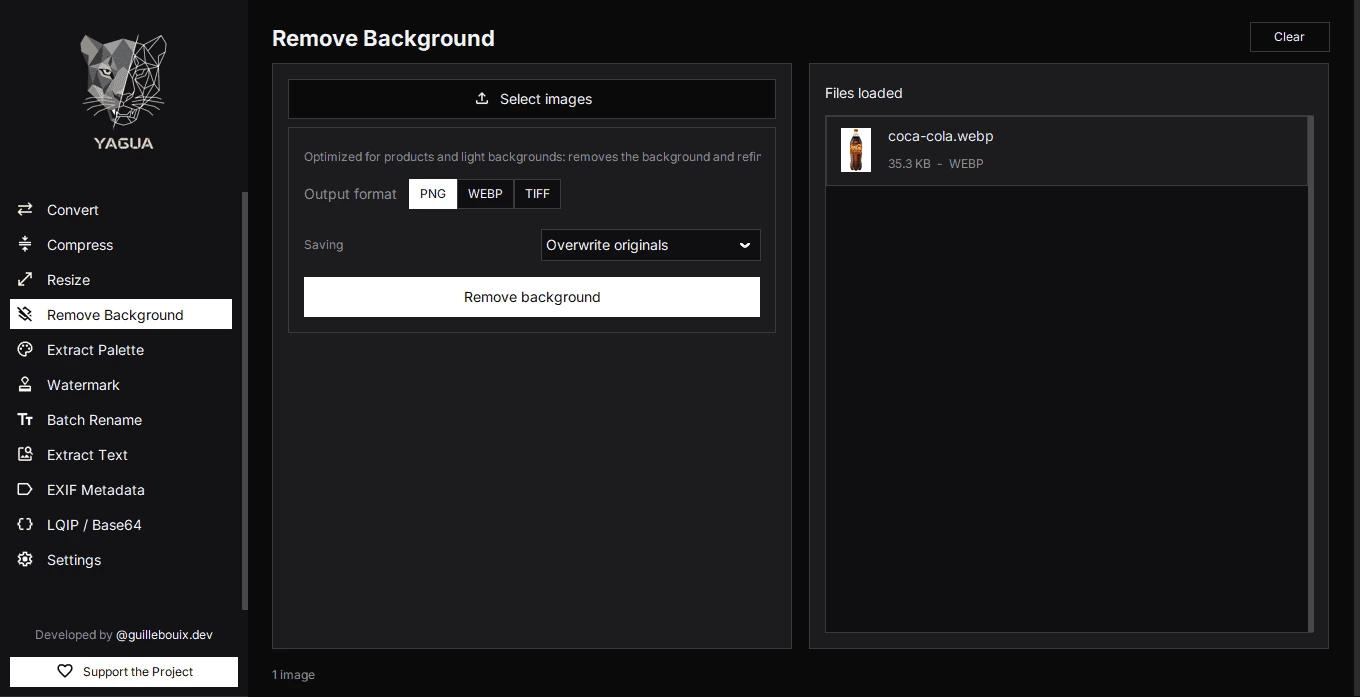
Controls and automatic behavior
| Control | Initial value or options |
|---|---|
| Select images | Loads or replaces the batch. |
| Output format | PNG; also WEBP and TIFF. |
| Saving | Create copies or Overwrite originals. |
| Remove background | Prepares output and asks for confirmation. |
| Clear | Empties inputs without deleting models or saved results. |
There is no model selector, manual threshold, or refinement checkbox. The code chooses ISNet and may use u2netp for compatibility. Light-background analysis and edge refinement are automatic. A final message may indicate fallback model use.
First run and connection
Missing models download when processing starts. Downloads and initial model setup can take substantially longer than later operations. The tested package uses CPU and does not require a dedicated GPU.
Wait through loading and analysis instead of clicking repeatedly. Available models can be reused offline.
Step by step
- Open Remove Background and load a clear photograph.
- Choose PNG for a first transparency test.
- Set Saving to Create copies for this test; the screenshot shows Overwrite originals. Click Remove background, choose a folder, and review the confirmation.
- Wait for any download, initialization, and processing.
- Check the summary and open the file in a viewer that displays transparency.
The screen shows inputs, not an editable cutout comparison. Inspect the exported file. Some viewers display alpha over white or black; their background does not prove the output is opaque.
Example and saving
With PNG and Create copies, producto.jpg becomes producto.png in your chosen folder, or a numbered variant when occupied. This mode preserves the original. Overwrite originals allows replacement when formats match; changing format creates another file beside the original. Review the saving summary. All three output formats support alpha; JPEG is absent because it does not preserve transparency.
To add a logo afterwards, load the exported file in Watermark. Converting it to JPEG first loses transparency.
If something goes wrong
- Missing dependency: check the package and reinstall an appropriate version. Help-panel commands target source environments; running them in another Python does not repair a packaged executable.
- Download failure: check internet access and write permissions for the model cache.
- Incomplete cutout: try a photo with clearer background separation; this screen has no threshold slider.
- Partial failure: inspect saved outputs before repeating the batch.
New selections replace old ones. Clear empties the screen without clearing AI caches or undoing saved results; the output format may remain selected.