

Resize images
Change pixel width and height using a percentage, dimensions, or a preset.
Guide based on source version 2.0.1-rc.7. Screenshots show the English interface of a prerelease edition; their values illustrate examples, not necessarily defaults. Packages on Downloads may differ: review their release notes and saving options before processing.
On this page
Find the tool
Open Resize → Resize. Crop and Canvas share the selection but perform different operations.
The limit is 100 images. The general selector offers more extensions than this save path reliably supports. Prefer JPEG, PNG, WebP, BMP, TIFF, or HEIC/HEIF with its codec. Convert AVIF or ICO copies to PNG/JPEG first; see the matrix. Animation and multiple pages are not preserved.
Modes
| Mode | Controls | Result |
|---|---|---|
| Percentage | 1–200 %, initially 50 % | Multiplies width and height by the percentage. |
| Pixels | Width, Height, Maintain aspect ratio | Calculates or constrains dimensions from your input. |
| Preset | Predefined sizes | Forces the preset’s exact width and height. |
Gray examples such as 1920 or 1080 in empty fields are placeholders, not entered values.
Percentage
50 % turns 4000 × 3000 into approximately 2000 × 1500. 100 % keeps dimensions. 200 % doubles both sides and quadruples the pixel count. Enlarging cannot recover missing detail. Results round to whole pixels.
Pixels and aspect ratio
Aspect ratio is width relative to height. Maintain aspect ratio starts enabled.
- Width only: calculates proportional height, even if that enlarges the image.
- Height only: calculates proportional width.
- Both, with the checkbox enabled: fits inside that rectangle without distortion. This fitting mode does not enlarge an image already smaller than the box.
- Both, with the checkbox disabled: forces the dimensions and distorts images with a different ratio.
Use positive integers. Empty or invalid dimensions cannot produce the expected result; depending on the case, a warning or errors in the summary appear.
Presets
Groups include Instagram, Facebook, Twitter / X, YouTube, LinkedIn, TikTok / Whatsapp, Pinterest, Web, resolutions, and icons. The initial preset is Instagram - Post cuadrado 1:1, 1080 × 1080. See the complete table in Formats and limits.
A preset does not crop or add margins: it resizes to an exact box and can distort a photograph. For 1280 × 720 without distortion, crop to 16:9 first, then resize. To preserve the full image, use Canvas.
Procedure and example
- Load photos with Select images.
- Choose Pixels, enter Width 1600, and leave Height empty.
- Under Saving, choose Create copies. Click Resize, choose output, and review the confirmation.
- Wait for the summary and check saved dimensions.
A 4000 × 3000 photograph becomes 1600 × 1200. Create copies saves foto.jpg, adding a counter for an occupied destination and preserving the original. Overwrite originals allows replacement. Check the mode before confirming. The input format remains; re-encoding does not guarantee preservation of all EXIF or a particular size.
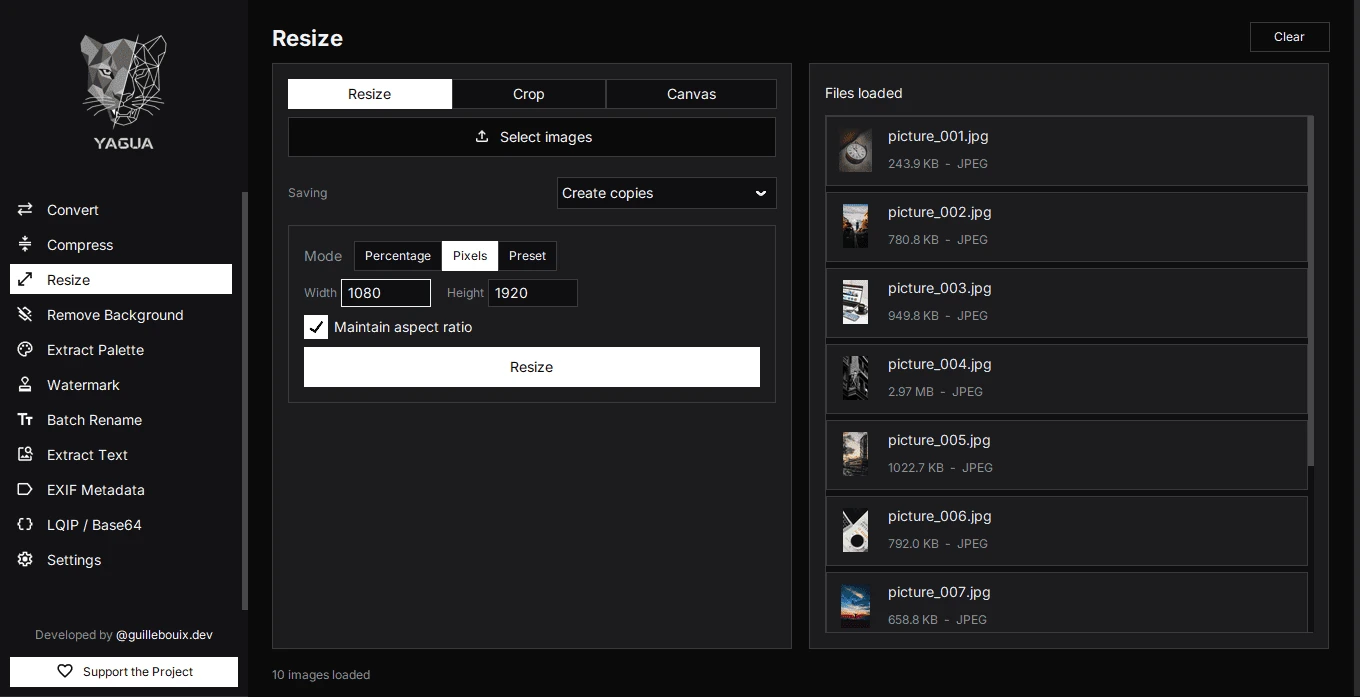
The screenshot shows another valid configuration: Pixels, 1080 × 1920, with Maintain aspect ratio enabled. It illustrates fitting inside a rectangle rather than the width-1600 procedure.
Selection and clearing
The list shows inputs, not final previews. New files replace the batch; switching tabs uses the same inputs rather than the previous output. Clear empties the selection but retains sizing options. Pixel fields may become empty when the mode is rebuilt, so review them when switching modes.