

Batch convert images
Convert images between JPEG, PNG and WebP with Yagua. Follow the steps, check codec support and test a copy before processing a batch.
Guide based on source version 2.0.1-rc.7. Screenshots show the English interface of a prerelease edition; their values illustrate examples, not necessarily defaults. Packages on Downloads may differ: review their release notes and saving options before processing.
On this page
When to use it
Use Convert to turn JPEG photographs into WebP for a website or prepare PNG copies for another tool. This module does not change dimensions through a size control; use Resize for that.
Select up to 100 images. The general selector offers .jpg, .jpeg, .png, .webp, .bmp, .tiff, .avif, .heic, .heif, and .ico. Reading depends on packaged codecs. Conversion rejects multipage or animated images; it does not preserve an animated sequence.
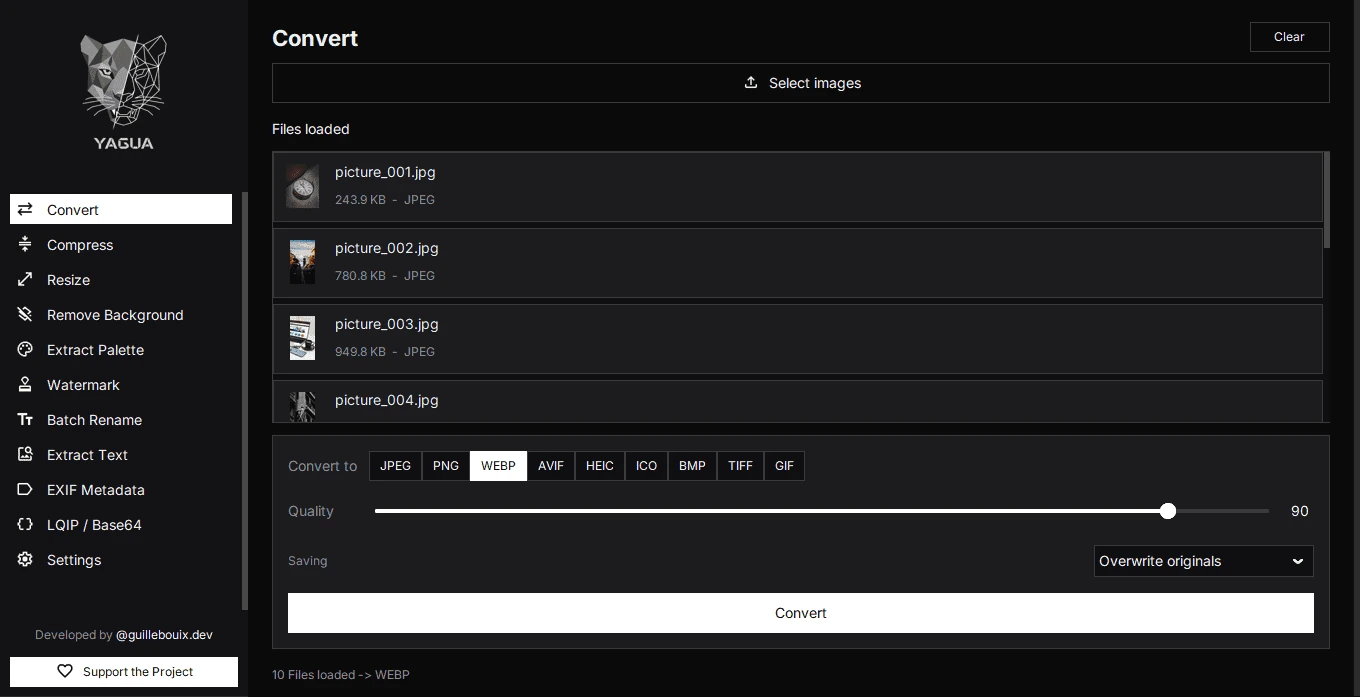
Controls
| Control | Initial value or options | Effect |
|---|---|---|
| Select images | No loaded files | Replaces the selection and displays inputs. |
| Convert to | WEBP | JPEG, PNG, WEBP, AVIF, HEIC, ICO, BMP, TIFF, or GIF. |
| Quality | 90; range 10–100 | Adjusts encoding for formats that use this parameter. |
| Saving | Create copies or Overwrite originals | Determines the destination before processing. |
| Convert | Requires images | Prepares output and asks you to confirm the saving summary. |
| Clear | No deletion confirmation | Clears the visible selection without deleting files. |
Quality is not resolution. Lowering it does not change width or height. JPEG, WebP, AVIF, and HEIC use quality; PNG, ICO, BMP, and GIF do not allow this adjustment here. TIFF may display an enabled control, but saving does not apply JPEG quality to TIFF. Do not treat it as a guarantee of smaller files.
Choose a format
- JPEG: useful for photographs without transparency. Transparent areas are composited over white.
- PNG: retains transparency and suits graphics, but may be larger than the original.
- WebP: can retain transparency and suits web use; shown as
WEBPin the selector. - AVIF and HEIC: depend on available codecs. HEIC may be disabled without support.
- ICO: creates typical internal icon sizes up to 256 px; it is not a layered icon editor.
- BMP and TIFF: raster outputs for specific needs that may produce large files.
- GIF: a static image with a palette of up to 256 colors, not an animation.
Procedure
- Open Convert and click Select images.
- Check the names under Files loaded.
- Choose the format and adjust Quality where it has an effect.
- Under Saving, choose Create copies. Click Convert, choose a folder, and review the confirmation before continuing.
- Wait for the summary. If errors occur, inspect the files already created before repeating the whole batch.
The list shows input thumbnails, not before/after quality comparisons. Open the saved file in a viewer to inspect it. Changing a format or control does not create output automatically.
Example
For producto.jpg, choose WEBP, quality 85, and a web folder. Expect producto.webp with the same pixel dimensions, without a guaranteed file size. If it exists, Yagua looks for a name such as producto_1.webp.
This example uses Create copies. With Overwrite originals, matching input and output formats allow replacement; changing formats creates another file beside the original. Always review the replacement and copy counts.
Originals, limits, and problems
Output uses the original base name and target extension; JPEG uses .jpg. Conversion normalizes orientation and may change color representation. It does not preserve every metadata block or archive the exact original.
Clear removes the selection and thumbnails while retaining conversion controls. Selecting new images replaces the list. If HEIC or AVIF fails, try PNG or JPEG and check codec availability. Manually changing an extension does not convert an image.