

Add a canvas
Center an image inside a final size and fill the surrounding space with a background.
Guide based on source version 2.0.1-rc.7. Screenshots show the English interface of a prerelease edition; their values illustrate examples, not necessarily defaults. Packages on Downloads may differ: review their release notes and saving options before processing.
On this page
When to use it
Use Canvas for square product photos, margins, or consistent catalog sizes while retaining the full framing. Unlike a Resize preset, it does not have to stretch the photograph to fill the rectangle.
Open Resize → Canvas. It shares up to 100 images with the sizing tabs. Prefer JPEG, PNG, WebP, BMP, TIFF, or supported HEIC/HEIF. Convert AVIF and ICO to PNG first.
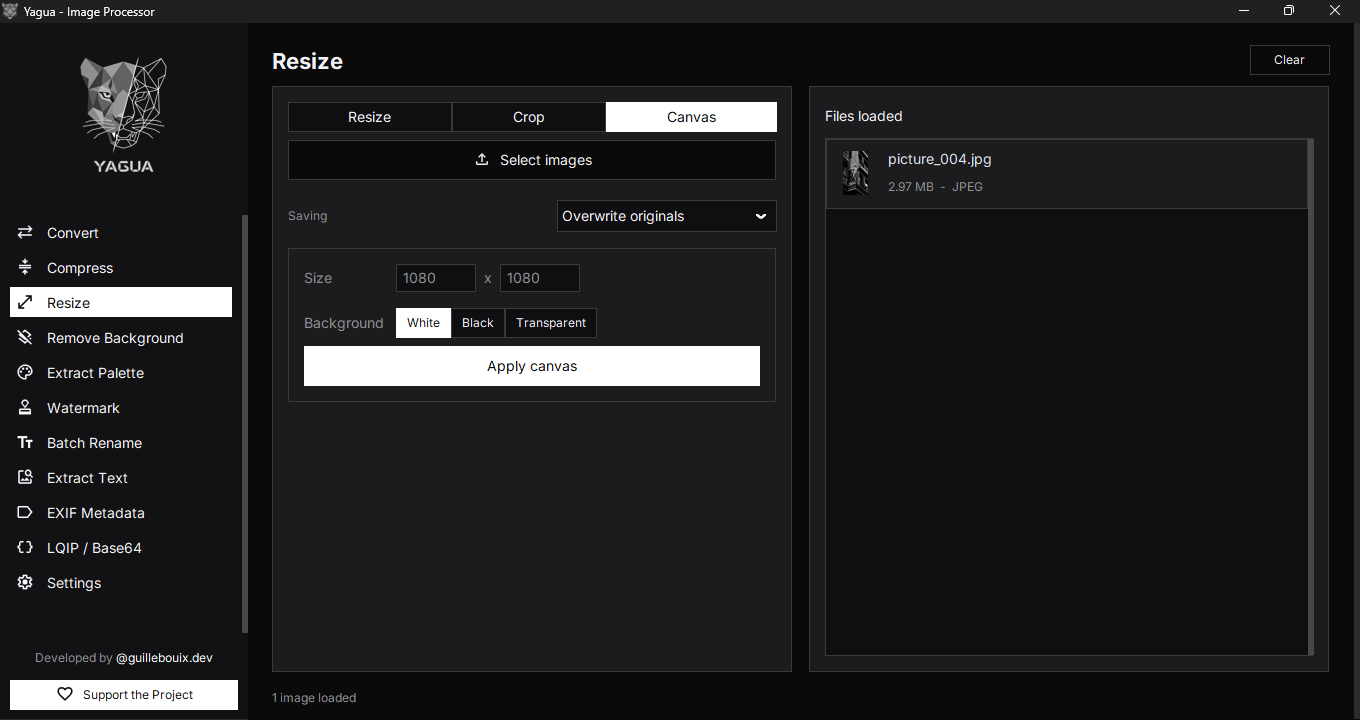
Controls
| Control | Initial value or options |
|---|---|
| Size | Width × Height in pixels; initially empty, with 1080 as a visual example. |
| Background | White, Black, or Transparent; initially White. |
| Saving | Create copies or Overwrite originals. |
| Apply canvas | Prepares output and asks for confirmation. |
| Clear | Empties the shared selection. |
Enter both dimensions as positive integers. The final size is the canvas, not necessarily the photograph inside it.
How the image is placed
The image is centered horizontally and vertically. Larger images shrink proportionally to fit. Smaller ones keep their size and receive more surrounding background; Canvas does not automatically enlarge them.
There are no free-position, separate-margin, or custom-color controls. Choose one of the three available backgrounds.
Transparency
Transparency is the absence of an opaque background, represented by an alpha channel. JPEG does not preserve it. Choosing Transparent does not change output format: the input extension remains.
Use PNG or WebP inputs for transparent canvases. A Transparent batch without formats recognized as transparent falls back to black and may show a warning. The check applies to the set, not as a guarantee per file: avoid mixed JPEG/PNG batches when every output needs alpha.
Procedure and example
- Load
producto.png, 1200 × 800. - Enter 1080 × 1080 in Canvas.
- Choose White and set Saving to Create copies. The screenshot shows Overwrite originals: change it to preserve the input for this example.
- Click Apply canvas, choose a folder, review the confirmation, and open the result.
The photo shrinks to 1080 × 720, centered with about 180 background pixels above and below. The full result is 1080 × 1080. A 600 × 400 input is not enlarged and gets wider margins.
Saving, selection, and errors
Create copies retains the base name, such as producto.png, with a counter for conflicts. This mode preserves originals. Overwrite originals allows replacement. The file is re-encoded without guaranteed complete metadata preservation.
There is no interactive canvas preview; inspect the saved output. Changing the background does not process automatically. New files replace the batch. Clear empties all three tabs while retaining options. Canceling folder selection does not run the operation.
For unexpected black, inspect formats and batch composition. If the photo is too small within the canvas, remember Canvas only shrinks large images; resize a copy first to enlarge it.