

Navigation and loading images
Find tools, select files, and distinguish an input thumbnail from a preview of the result.
Guide based on source version 2.0.1-rc.7. Screenshots show the English interface of a prerelease edition; their values illustrate examples, not necessarily defaults. Packages on Downloads may differ: review their release notes and saving options before processing.
On this page
Home and the sidebar
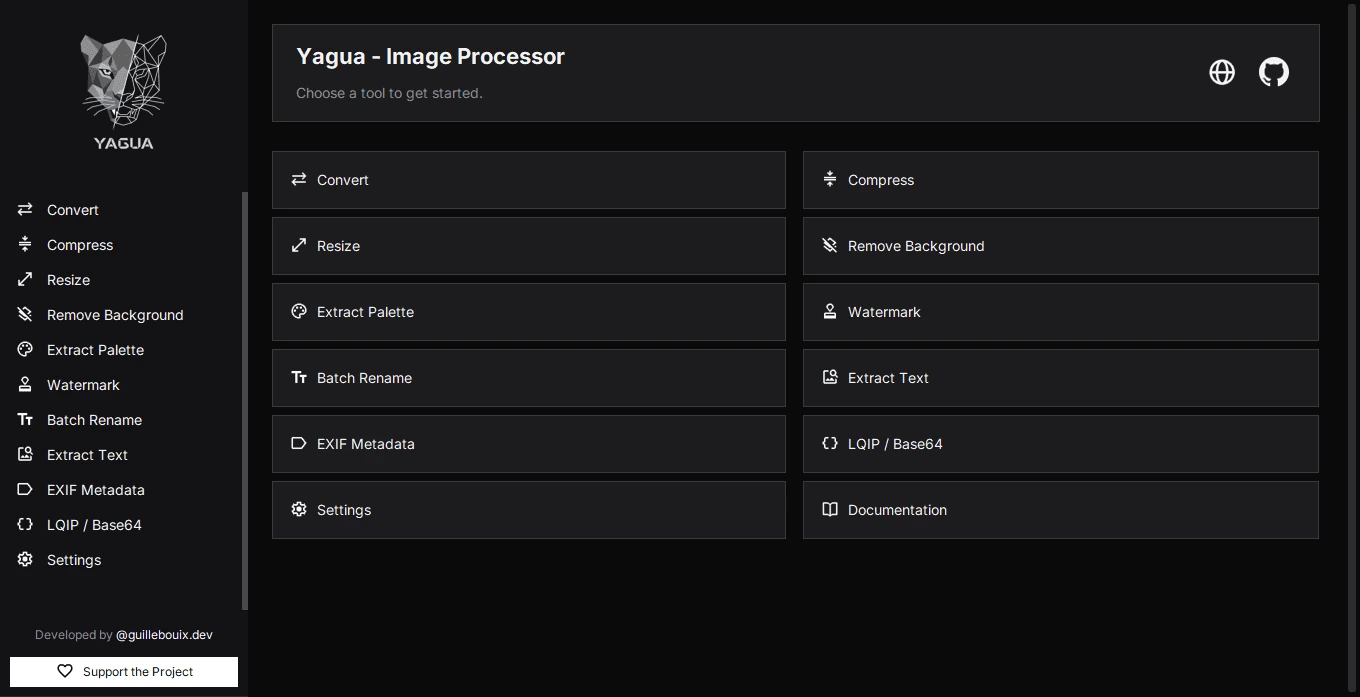
Home offers shortcuts to the modules. Use the sidebar to switch tools. If a tool is missing, check Settings → Visible modules and apply the change.
Modules keep their own state while their instance exists, but there is no saved project session to recover after closing. Export important results before restarting or exiting.
Select files
Use the module’s selection button. The system dialog supports normal multiple-selection behavior where the tool allows it. Dragging files is not required; these guides use the available buttons.
In processing tools, selecting new files replaces the current selection; there is no global queue across tools. Metadata is the exception: Add images appends to a list shared by its three tabs, skipping duplicates. Canceling a dialog normally preserves the previous state. Always check the resulting list.
| Selection | Tools |
|---|---|
| One image | Extract Palette; LQIP / Base64 |
| Up to 10 images | Extract Text; Remove Background |
| Up to 100 images | Convert; Compress; Resize/Crop/Canvas; Watermark; Batch Rename |
| Up to 100 in a shared list | Metadata: View and Edit show the open image; checkboxes mark destinations for batch actions. |
Watermark also uses a separate logo file. When a batch selection exceeds a module’s limit, the code takes the first files in the received set up to that limit. Check the loaded count instead of assuming all files were included.
What the list shows
Lists usually show name, thumbnail, extension, and size. The received selection determines order; Yagua does not provide manual list sorting. This matters for Batch Rename because numbering follows list order.
Names may be shortened to fit. A working thumbnail does not prove the file can be saved in every format: reading and writing use different capabilities.
Previews
- Convert, Compress, and all three sizing tabs show input files, not an interactive simulation of the final output.
- Watermark shows an approximate composition on the first batch image.
- Batch Rename shows proposed names before applying them.
- LQIP / Base64 compares the original with the generated output.
- Edit EXIF shows the selected photograph. Orientation changes are confirmed on save, not through a visual cropping editor.
Panels may stack or require scrolling depending on window width and interface scale. Check the entire page before deciding a button is missing.
Clear and active operations
Clear empties selections and on-screen results according to the module, without deleting files. It is not Undo. LQIP also resets parameters; Watermark rebuilds its module; Metadata clears all three tabs. Other tools retain options.
Controls may be disabled or a wait notice may appear during processing. That does not by itself mean the app has stopped responding. Do not open multiple instances to work around it. Closing or restarting may require waiting; save your results before exiting.