

View EXIF metadata
Inspect authorship, camera, capture, and location information without modifying the photograph, and export recognized fields.
Guide based on source version 2.0.1-rc.7. Screenshots show the English interface of a prerelease edition; their values illustrate examples, not necessarily defaults. Packages on Downloads may differ: review their release notes and saving options before processing.
On this page
What metadata is
Metadata is information stored alongside image pixels. A photograph can contain camera details, dates, an author, or GPS coordinates even without visible text overlaid on it.
Open EXIF Metadata → View and click Add images. Collect up to 100 images and open one at a time from the list. The dialog offers JPEG, PNG, TIFF, WebP, and HEIC/HEIF; actual reading depends on the format and package.
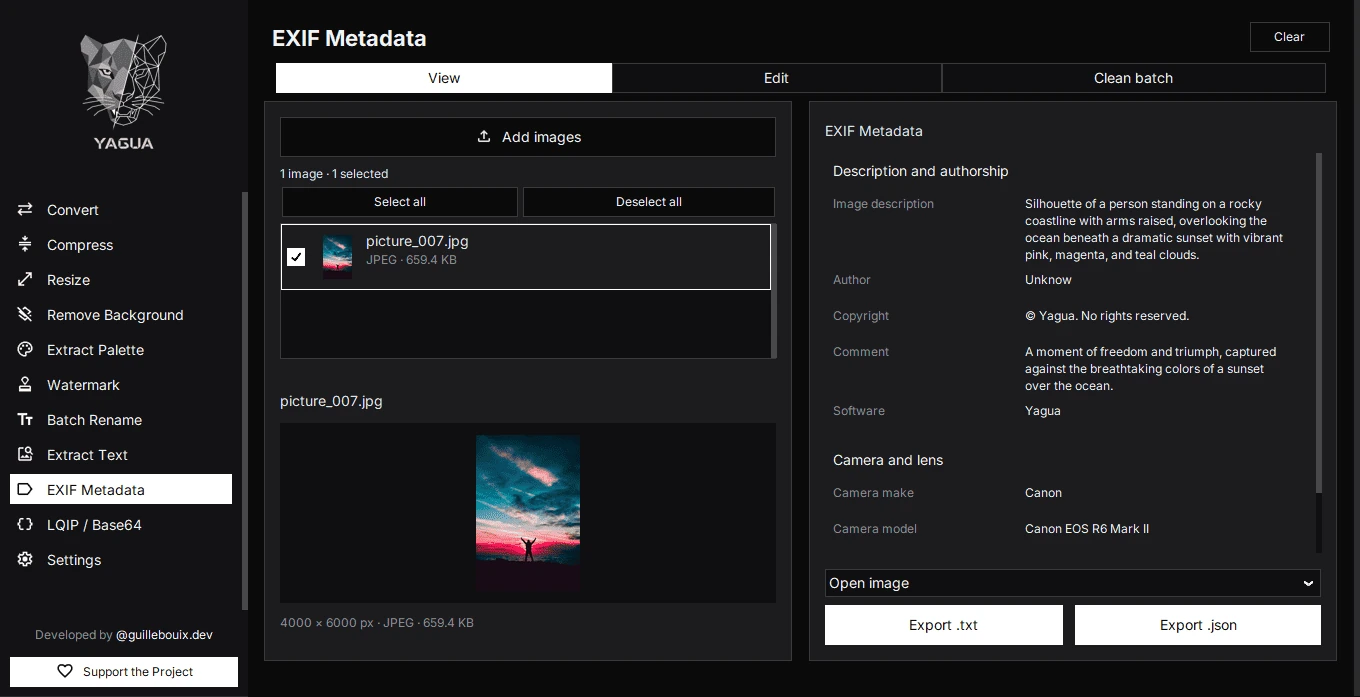
What the viewer shows
Only groups containing recognized, nonempty fields appear.
| Group | Recognized information |
|---|---|
| Description and authorship | Image description, Author, Copyright, Comment, Software. |
| Camera and lens | Camera make/model and lens make/model. |
| Capture settings | Exposure time, aperture, ISO, focal length, 35 mm equivalent focal length, exposure program/mode, compensation, metering, flash, white balance, light source. |
| GPS location | Latitude, longitude, altitude, direction. |
| Dates | Capture date, general date/time, digitized date. |
| Orientation and technical information | Width, height, orientation, and color space when present as metadata. |
This is not a dump of every EXIF, XMP, or IPTC tag. A no-metadata message may mean no recognized fields are available, not certification that the file contains no additional information.
Some encoded values show a readable name and a code in parentheses, distinguishing known choices from unrecognized values. Metadata describes what is written in the file, not proof that it is true or camera-generated.
Controls and procedure
- In View, click Add images and load photographs.
- Open a row to inspect its fields. Checkboxes mark files for batch actions; checking an image is different from opening it. Use Select all or Deselect all to change those marks.
- Scroll through all groups. Long values wrap to the available width.
- For a report, choose Open image or Selected images in the selector above the export buttons, then click Export .txt or Export .json.
- Choose its path and save.
Suggested names are metadatos.txt and metadatos.json. TXT is a readable report; JSON supports further processing. Exports contain recognized fields without internal helper keys. They do not copy the photograph or modify its metadata.
View on Maps
Interpretable latitude/longitude rows may offer View on Maps, opening Google Maps at that point in the browser. Opening the link sends the location outside your computer; reading EXIF itself is local.
Zero coordinates can be valid. Without an interpretable pair, there should be no useful map link. An EXIF location does not prove where the photograph was taken.
Example and switching tabs
Load a camera-photo copy, inspect its date, model, and ISO, and export TXT before editing. Keep the report to compare recognized values afterwards.
View, Edit, and Clean batch share the list and open image. Before editing or saving, check the filename above the form. Checkboxes determine the batch action set; the open row determines which image you are inspecting.
Clear empties the shared list and drafts in all three tabs. Pending changes may require confirmation before being discarded. It does not delete images or exported reports. Use the appropriate guide to change or remove data.