

Encode an image as Base64
Get a JPEG represented as text to embed it or pass it to a tool that accepts Base64.
Guide based on source version 2.0.1-rc.7. Screenshots show the English interface of a prerelease edition; their values illustrate examples, not necessarily defaults. Packages on Downloads may differ: review their release notes and saving options before processing.
On this page
Base64 is not compression or encryption
Base64 turns bytes into characters. The string usually occupies more space than the encoded bytes. It neither hides the image nor guarantees a smaller webpage.
Yagua’s Base64 mode re-encodes the image as JPEG, retaining pixel dimensions. It is not the exact bytes of the source PNG, WebP, or JPEG and does not preserve transparency. This mode is unsuitable when you need exact original-file Base64.
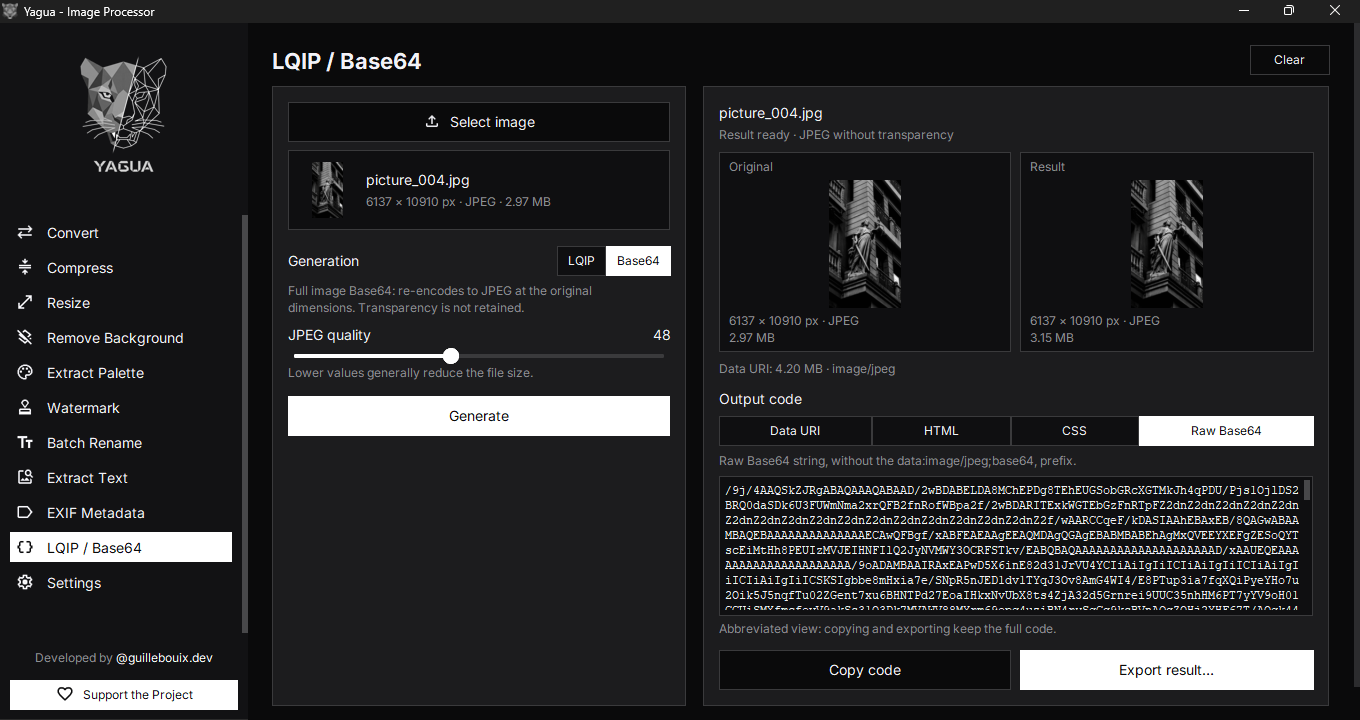
Inputs and controls
Open LQIP / Base64, load one image, and choose Base64 under Generation. The individual selector offers JPEG, PNG, WebP, BMP, TIFF, AVIF, and HEIC/HEIF when supported. Animated and multipage sequences are not preserved.
| Control | Effect |
|---|---|
| JPEG quality | 85 initially; 10–100. Controls the new JPEG encoding. |
| Generate | Creates encoded output and its representations. |
| Original / Result | Compares input and generated JPEG. |
| Output code | Data URI, HTML, CSS, or Raw Base64. |
| Copy code | Copies the complete chosen representation. |
| Export result… | Selected representation as TXT or all as JSON. |
| Clear | Restores the initial module state in LQIP mode. |
Width and Blur radius belong to LQIP and are not used for full-image Base64. Lower quality can lose detail but does not reduce dimensions.
Procedure and example
- Select an opaque 800 × 600 photograph.
- Choose Base64, keep quality 85, and click Generate.
- Check Result is 800 × 600 and inspect detail.
- Choose Data URI for an image attribute or Raw Base64 when the receiver expects only the string.
- Copy with the button or export.
Output is an 800 × 600 JPEG encoded as text. Data URI includes data:image/jpeg;base64,; Raw Base64 does not. They are not interchangeable without adaptation.
The screenshot uses another image at 6137 × 10910, quality 48, with Raw Base64 selected. It illustrates the controls and output; its dimensions and quality differ from the procedure above.
HTML and CSS
HTML returns an embedded-URI <img> tag. Review filename-derived alt text so it describes content for your visitors. CSS creates a background-image class; adapt the class name. Neither option installs code into your site automatically.
Large photographs may work better as normal files than extensive strings embedded in HTML/CSS. Use this mode when the receiving tool actually needs it.
Export and preservation
TXT includes the selected representation and a name comment. JSON exports nombre, base64, data_uri, html_tag, and css_bg. The proposed base name has _lqip even in Base64 mode; rename it to distinguish results if needed.
Fields describe JPEG even when the source name ends in PNG. The export is text, not a separate image file. Originals remain unchanged.
Changes and errors
Changing Quality or mode invalidates the previous result and requires generation again. Changing code representation does not require re-encoding. Long strings can appear abbreviated on screen, while button copying and exports retain full content.
A new input resets all parameters and returns to LQIP, so select Base64 again. Canceling keeps the current image. Clear also restores defaults. For memory errors on huge files, prepare a smaller copy with Resize and confirm that reduction suits the receiving tool.